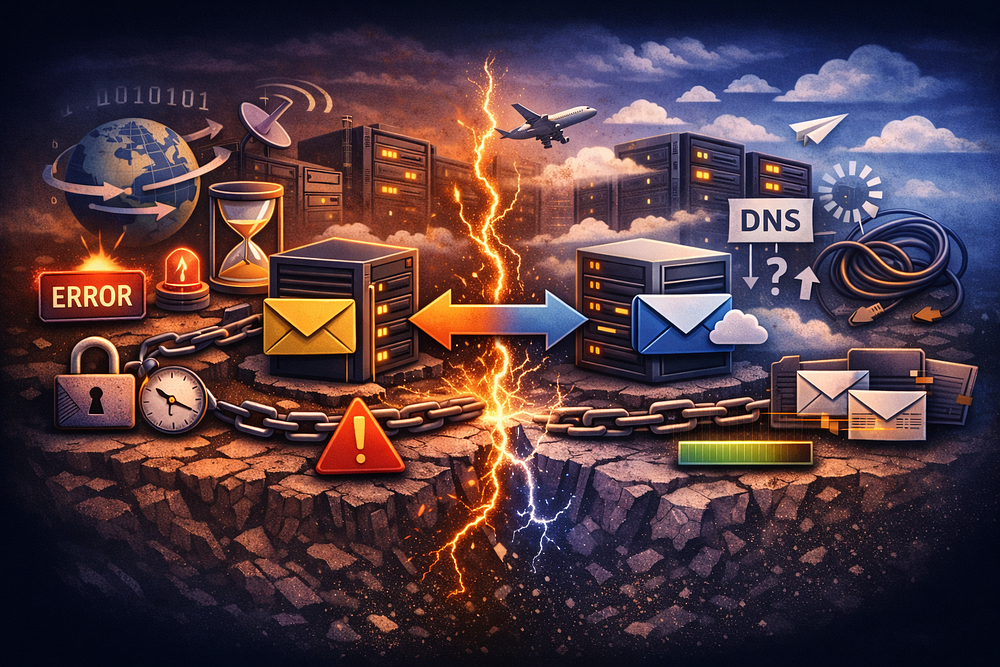
If you treat email migration as a simple file transfer, you are going to have a very bad weekend.
Moving files from one hard drive to another is a static process. Moving email is open-heart surgery on a patient that is still jogging. You are attempting to synchronize two live databases that are constantly mutating, speaking different dialects of IMAP, and fighting for authority over global DNS propagation.
Whether you are a founder moving a single domain to save costs, or an MSP migrating 500 seats over a weekend, the physics of the protocol do not change. The risks are identical; only the blast radius varies.
We have analyzed thousands of migrations to compile this dossier on email migration failure modes. These are not theoretical risks. These are the specific technical breakpoints — from the “300-second rule” of DNS to the silent data corruption of IMAP UID mismatches — that cause data loss, service blackouts, and the dreaded “split-brain” routing scenarios.
This is your survival guide.
1. The DNS “Split-Brain” Scenario (The 300-Second Rule)
The Failure Mode: You switch your MX records on Friday night at 10:00 PM. You wake up Saturday morning, high-five your team, and think you’re done. But on Monday morning, your client calls screaming that half their vendors are getting bounce backs, and the other half are delivering mail to the old server that you just decommissioned.
The Technical Reality:
This happens because of Time To Live (TTL). DNS is a distributed caching system. When you update your MX record, that change doesn’t propagate instantly. It propagates at the speed of the TTL value set on your old records.
If your current TTL is set to 86,400 seconds (24 hours) — a common default for set-and-forget registrars — recursive resolvers across the internet (ISPs, corporate firewalls, spam filters) will hold onto that old IP address for a full day.
During this 24-hour window, you are in a state of “Split-Brain.”
- Sender A (Updated DNS): Delivers to your new TrekMail server.
- Sender B (Cached DNS): Delivers to the old Exchange server.
If you have already cut off access to the old server, Sender B gets a bounce (NDR). If the old server is still active, the mail lands there, stranding it in a “zombie” mailbox that the user is no longer checking.
The Fix: The T-Minus 48 Hour Protocol
You cannot fix this on the night of the migration. You must prep the battlefield days in advance.
Step 1: The Audit (T-7 Days)
Check your current TTL values for MX, SPF, and DMARC. If they are high (1 hour+), you need to plan a change window.
Step 2: The Compression (T-48 Hours)
Log into your DNS provider and lower the TTL on your MX records to 300 seconds (5 minutes). Do not go lower than 300; some aggressive spam filters treat 30-second TTLs as “fast flux” botnet behavior and will block your mail.
Step 3: The Cutover (T-0)
When you update the MX records to point to the new host, the propagation will now complete in roughly 5 minutes (plus a small “long tail” of stubborn resolvers).
Step 4: The Restoration (T+48 Hours)
Once traffic has stabilized, raise the TTL back to 3600 seconds (1 hour) or more to reduce DNS lookup load.
Operator Note: Don’t forget the SPF record. If you switch MX but leave the old SPF record cached, the new server will receive mail, but your outbound replies will be marked as spam. Lower the TTL on your TXT records too.
2. Throttling and the “Leaky Bucket” (Bandwidth Physics)
The Failure Mode: Your migration tool estimates the job will take 4 hours. You start the batch. It flies for the first 60 minutes, then hits a brick wall. Throughput drops to zero. The logs fill with HTTP 429: Too Many Requests or Error 503: Server Busy.
The Technical Reality:
You are not limited by your internet connection speed. You are limited by the source provider’s API defense mechanisms.
Big Tech providers (Google Workspace, Microsoft 365) utilize “leaky bucket” throttling algorithms. They allow a burst of activity, but once you consume your token bucket, they hard-stop your connection.
- Google IMAP Limits: roughly 2,500MB of downloads per day, per user. Uploads are capped even tighter at ~500MB/day.
- Microsoft Back Pressure: Exchange Online monitors the health of its specific database shard. If the server load is high (which you cannot see), it throttles incoming connections regardless of your settings.
The Math of Failure:
If you have a 10GB mailbox and you are migrating to a provider with a 500MB/day upload limit, that single mailbox will take 20 days to migrate. If you try to force it over a weekend, you will fail.
The Fix: The Pre-Stage Strategy
Never attempt a “Big Bang” (all-at-once) migration for anything larger than a 5-user startup. You must decouple the data move from the DNS switch.
Phase 1: The Historic Load (T-2 Weeks)
Configure your migration tool to move all email older than 90 days.
- This is usually 90% of the data volume.
- Users can still work; this happens in the background.
- If you hit throttling limits, it doesn’t matter. The tool can back off and retry over several days.
Phase 2: The Delta Pass (Cutover Weekend)
Once the heavy lifting is done, you run a “Delta” pass. This syncs only the items from the last 90 days. Since the volume is low, this completes quickly, fitting comfortably inside a Friday night maintenance window.
TrekMail Context:
Whether you are moving 5 users or 500, paying per-seat for migration tools adds up fast. TrekMail’s built-in migration engine handles this throttling logic for you automatically, pulling data via IMAP without the need for expensive third-party licenses.
3. The IMAP Identity Crisis (UIDVALIDITY)
The Failure Mode: The migration finishes. Users log in. They see their emails, but they also see thousands of duplicates. Or worse, they see the old emails, but the new emails from the last week are missing.
The Technical Reality:
IMAP is a stateful protocol. It doesn’t just list files; it assigns a unique ID (UID) to every message in a folder. Migration tools rely on these UIDs to know what they have already copied.
However, UIDs are only valid as long as the UIDVALIDITY value of the folder remains unchanged.
- The Trigger: If a user on the source server renames a folder, deletes a folder and recreates it, or if the source server undergoes a database re-indexing, the UIDVALIDITY changes.
- The Consequence: The migration tool looks at the folder, sees a new UIDVALIDITY, and assumes every single email is new. It re-downloads everything.
This creates massive duplication and blows out your storage quotas.
The Fix: Hashing and Freezing
1. The User Freeze
Instruct users to stop organizing their mailboxes during the migration window. No renaming folders. No bulk deleting. No moving thousands of items to “Archive.” Read-only access is safest.
2. Hash-Based Deduplication
Primitive migration tools rely solely on UIDs. Professional tools (and the TrekMail engine) use Header Hashing.
We look at the Message-ID, Date, and Subject headers. We hash them into a unique fingerprint. Before migrating an email, we check if that fingerprint already exists on the destination. Even if the IMAP UID changes, the message content hasn’t, so we skip it.
4. The Namespace Collision (Dot vs. Slash)
The Failure Mode: A user logs in and panics. “My folders are gone!” They aren’t gone, but they look wrong.
- The “Sent Items” folder is empty, but there is a new folder called “Sent Messages.”
- A nested folder structure like Clients > 2024 > Project A has been flattened into a single folder named Clients.2024.ProjectA.
- Gmail users find that a single email has been copied three times into three different folders.
The Technical Reality:
This is a translation error between server dialects.
- The Delimiter War: Dovecot (Linux) servers often use a dot (.) as a hierarchy separator. Exchange uses a slash (/). If you move from Dot to Slash without mapping, the destination server interprets the name literally.
- The Gmail Multiplier: Gmail does not have folders. It has “Labels.” An email in Gmail is a single object with multiple tags (e.g., “Inbox”, “Work”, “Urgent”). Standard IMAP servers use physical folders. To migrate a multi-labeled email, the tool must create a physical copy of that email in every corresponding folder. A 10GB Gmail account can explode into 30GB of storage on the destination.
The Fix: Regex Folder Mapping
You must configure your migration engine to “translate” the folder names on the fly using Regular Expressions (Regex).
Common Mappings:
- Source: ^INBOX\.Sent →\rightarrow→Dest: Sent Items
- Source: ^\[Gmail\]/Trash →\rightarrow→Dest: Deleted Items
- Source: ^\[Gmail\]/All Mail →\rightarrow→Dest: [SKIP]
Critical Warning: Always exclude the [Gmail]/All Mail folder. This folder contains a copy of every single email in the account. If you migrate it alongside the other folders, you guarantee 100% data duplication.
5. The “Whale” Mailbox and Down-Licensing
The Failure Mode: You are migrating a client from an on-premise Exchange server to a cloud provider. The migration hits 99% success, but the CEO’s mailbox fails completely.
The Technical Reality:
On-premise servers often had no storage quotas. It is not uncommon to find a “Whale” user — usually a founder or a lawyer — with an 85GB mailbox accumulated over 15 years.
Most cloud “Basic” plans have a hard limit of 50GB.
- M365 Business Basic: 50GB limit.
- Google Workspace Starter: 30GB limit.
When the migration tool tries to push 85GB into a 50GB container, it doesn’t just stop at 50GB. It usually fails the entire batch or corrupts the index.
The Fix: Inventory and Pooled Storage
1. The Pre-Flight Inventory
Never quote a migration price or timeline without running a scan first. Use PowerShell (Get-MailboxStatistics) or your migration tool’s “Assessment Mode” to find the Whales.
2. The “New Way”: Pooled Storage
The “Old Way” forces you to buy an expensive Enterprise license ($20+/month) just for that one user, while everyone else stays on Basic. This breaks your billing standardization.
TrekMail solves this with Pooled Storage.
If you are an Agency managing 100 domains, you buy a storage block (e.g., 200GB). You can allocate 100GB to the CEO and 1GB to the intern. You don’t pay extra for the Whale; you just balance the pool. This is one of the primary reasons MSPs switch to our infrastructure — it recovers the margin lost to rigid per-user licensing.
6. The “Ghost” Messages (Corrupt MIME)
The Failure Mode: The migration report shows “Failed Items: 42.” The client demands to know what was lost. You spend hours digging through logs only to find out it was 42 calendar invites from 2014 that were malformed.
The Technical Reality:
Email data rots. Over decades, servers accumulate “poison” items:
- Corrupt MIME Headers: Emails that violate RFC standards.
- Oversized Attachments: A 150MB video file sent internally in 2010.
- Zero-Byte Files: Attachments that lost their data during a previous server crash.
Strict migration tools will halt on these errors to preserve “Zero Loss” integrity. But in reality, these items are trash.
The Fix: Bad Item Limits
Pragmatism beats perfection here. Configure your migration batch with a Bad Item Limit (usually 50 items).
- This tells the tool: “If you find a corrupt item, skip it, log it, and keep moving.”
- The Audit: Always download the “Skipped Item Report” (CSV). Scan it to ensure no critical legal documents were skipped. 99.9% of the time, it’s noise.
7. The Identity Trap (LegacyExchangeDN)
The Failure Mode: You migrate from Exchange to Exchange (or O365). Internal users try to reply to old email threads, and they get an immediate bounce: IMCEAEX-_O=FIRST+20ORGANIZATION… User Unknown.
The Technical Reality:
Exchange doesn’t just route mail via SMTP (user@domain.com). Internally, it uses a legacy X.500 address format called LegacyExchangeDN.
When a user replies to an old email, Outlook uses this cached X.500 address, not the SMTP address. Since the new server doesn’t know this old X.500 string, it rejects the mail.
The Fix: X.500 Proxy Addresses
You must export the LegacyExchangeDN from the source server before you shut it down. You then add this string as a secondary “X.500” proxy address to the user’s new mailbox.
PowerShell Export Command:
Get-Mailbox -ResultSize Unlimited | Select-Object Name, PrimarySmtpAddress, LegacyExchangeDN
If you are migrating to TrekMail (which is pure IMAP/SMTP), this is less of an issue for internal routing, but it highlights the complexity of sticking with legacy Exchange architectures. Moving to a standards-based IMAP host eliminates this proprietary headache forever.
8. The Client-Side Hangover (Auth & Caching)
The Failure Mode: The server migration is perfect. The DNS is propagated. But on Monday morning, your helpdesk ticket queue explodes. “I can’t connect!” “It keeps asking for my password!”
The Technical Reality:
This is rarely a server issue. It is a client caching issue.
- Outlook: Caches the “Last Known Good” configuration. Even if Autodiscover points to the new server, Outlook will stubbornly try to hit the old endpoint.
- Mobile Devices: Modern Authentication (OAuth) tokens are tied to the specific tenant/server. You cannot simply update the “Server Name” field on an iPhone. The security token is invalid for the new host.
The Fix: The “Burn and Rebuild” Protocol
Do not try to patch old profiles. It fails more often than it works.
1. Outlook: Create a New Mail Profile.
Do not delete the old one (users might need to reference cached data). Set the new profile as default.
2. Mobile: Delete and Re-Add.
Instruct users to delete the account from their phone settings and add it as a new account. This forces a fresh Autodiscover lookup and generates a new auth token.
3. Communication:
Send a “Cutover Guide” to all users on Friday. Put it in bold red text: “You will need to re-enter your password on Monday. You may need to re-add your account on your phone.” Managing expectations is half the battle.
Conclusion: The Operator’s Checklist
Email migration is high-stakes infrastructure work. It requires forensic attention to detail. But it is also the best time to simplify your stack.
If you are tired of managing the complexity of LegacyExchangeDNs, throttling limits, and per-user licensing costs, this is the moment to evaluate your architecture.
The TrekMail Alternative:
We built TrekMail to solve the “Operator’s Dilemma.”
- Simplicity: We stripped out the bloat. No SharePoint. No complex licensing. Just rock-solid IMAP/SMTP.
- Cost Control: Our Agency Plans let you host unlimited domains with pooled storage. You stop paying the “per-user tax” to Big Tech.
- Control: You get a dashboard that lets you manage 500 domains as easily as one.
Your Final Pre-Flight Check:
TTL Lowered to 300 seconds (48h prior).
Inventory Complete (Whales identified).
Pre-Stage Sync finished (items >90 days).
Users Warned about the Monday morning re-auth.
Folder Maps configured to prevent duplication.
Don’t just move the mail. Upgrade the business model. Try TrekMail for Free.
Comments
Post a Comment