
Moving email infrastructure is not a “copy and paste” operation. It is a forensic reconstruction of a database across two hostile servers that likely don’t speak the exact same dialect.
Whether you are a founder moving a single domain away from a legacy cPanel host, or an MSP migrating 500 seats to a more profitable platform, imap migration is the single most dangerous phase of the project. It is the point where data corruption, “ghost” messages, and split-brain routing happen.
If you treat this like a file transfer, you will fail. You will lose read/unread status, you will duplicate gigabytes of data, and you will spend your Monday morning explaining to a client why their “Sent” folder is empty.
This guide is the operator’s manual for doing it right. We aren’t just covering the happy path; we’re covering the physics of the protocol, the failure modes that tools hide from you, and the exact strategy to execute a zero-downtime cutover.
Learn More: Email Migration: The Step-by-Step Guide to Move Mail Without Losing Emails or Downtime (2026).
How IMAP migration works (what it copies; what it doesn’t)
To understand why migrations break, you have to understand what the tool is actually doing.
An imap migration tool acts as a “Man in the Middle.” It is a client that logs into the Source Server (Host A) and the Destination Server (Host B) simultaneously. It performs a FETCH command on Host A to pull headers and bodies into memory, and an APPEND command on Host B to write them.
It sounds simple, but IMAP (RFC 3501) was designed for viewing mail, not bulk replication.
The Transfer Matrix: What Actually Moves?
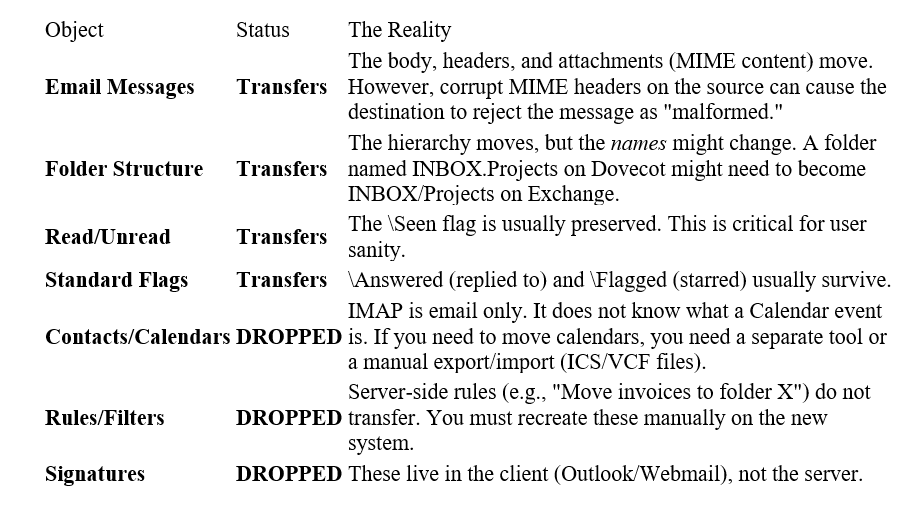
The “State” Problem
Migration tools don’t just copy files; they translate state. The biggest risk is the UID (Unique Identifier). Every email in a folder has a UID. The migration tool tracks which UIDs it has already copied.
If the source server crashes or is restored from backup during your migration, its UIDVALIDITY value changes. This tells the migration tool, “I am a new folder, and all these emails are new.” The result? The tool re-copies everything. You end up with duplicates of every single email.
The Operator’s Take: Never run a “repair” or “reindex” on the source server while a migration is active. You will reset the state and double your storage usage instantly.
Consistency model: initial sync + delta sync + final delta
You cannot migrate a live email account in a single pass. If a mailbox is 20GB, it might take 2 days to move. In those 2 days, the user has received 50 new emails and deleted 10 old ones.
If you try to do a “Big Bang” cutover (move everything on Friday night), you will likely run out of time before Monday morning.
The professional standard is the Pre-Stage Strategy.
Phase 1: The Initial Sync (The “Heavy Lift”)
This happens while users are still working on the old system. You configure the tool to migrate mail, but you might filter by age to speed things up.
- Action: Migrate all mail older than 30 days (or just run a full pass if bandwidth allows).
- User Impact: Zero. They don’t know it’s happening.
- Goal: Move 90–95% of the data volume.
Phase 2: The Delta Sync (The “Catch-Up”)
A week later, you run the tool again.
- Action: The tool compares the source and destination. It sees that UIDs 1–1000 are already there, but UIDs 1001–1050 are new. It copies only the new items.
- The “Zombie” Risk: If a user deleted email #500 on the source after Phase 1, a standard additive Delta sync will not delete it from the destination. Most tools are “additive only” to prevent accidental data loss. You must warn users: “Clean up your mailbox before we start, or deleted items might come back to haunt you.”
Phase 3: The Final Delta (The Cutover)
This is the high-stress window.
- TTL Drop: 24 hours prior, you lowered your DNS TTL to 300 seconds.
- MX Switch: You update the MX records to point to the new host (e.g., TrekMail).
- The Gap: It takes ~1 hour for traffic to fully shift. During this hour, mail lands in both places.
- Final Pass: Once traffic hits the new server, you run one last Delta sync against the old server to grab any stragglers that landed there during the DNS propagation.
The failure modes (missing Sent, flags, duplicates, throttling, partial folders)
If you are reading this, you are likely worried about what can go wrong. Good. Paranoia saves jobs. Here are the most common ways imap migration projects fail.
1. The “Sent” Folder Trap
This is the classic rookie mistake.
- Source (e.g., cPanel): Stores sent mail in a folder named Sent Messages.
- Destination (e.g., Exchange/TrekMail): Expects sent mail in Sent Items.
- The Result: The migration tool copies Sent Messages as a regular custom folder. The user logs into the new account, looks at their “Sent” box, and sees it empty. They panic.
- The Fix: You must use Folder Mapping. You tell the tool: Map “Sent Messages” -> “Sent Items”. If your tool doesn’t support regex folder mapping, get a better tool.
2. The Throttling Wall
You have a 1Gbps uplink. It doesn’t matter.
- Google Workspace: Limits IMAP downloads to roughly 2.5GB per day per account. If you try to pull 10GB, the connection will be severed after the first 25%.
- Microsoft 365: Uses “Backpressure.” If you upload too fast, it starts issuing temporary errors.
- The Fix: Do not rush. Plan for a “slow drip” migration over a week. Use tools that support “Exponential Backoff” (if the server says “Stop,” wait 5 seconds, then 10, then 20).
3. The “All Mail” Duplication (Gmail Specific)
Gmail doesn’t actually have folders; it has labels. An email with the labels “Inbox” and “Project A” is the same email.
- The Risk: When you migrate via IMAP, Gmail presents these as two physical folders. The tool downloads the email twice.
- The Nightmare: Gmail also exposes a folder called [Gmail]/All Mail. This contains everything. If you migrate this folder along with Inbox and Sent, you will duplicate the entire mailbox, doubling your storage costs and confusing the user.
- The Fix: Always exclude the [Gmail]/All Mail folder in your migration tool settings unless you have a very specific reason not to.
4. Hierarchy Delimiters
- Server A: Uses dots (INBOX.Clients.TrekMail)
- Server B: Uses slashes (INBOX/Clients/TrekMail)
- If the tool doesn’t auto-detect and translate this, you might end up with a folder literally named INBOX.Clients.TrekMail sitting at the root level, destroying the user’s organization tree.
Verification: sampling, folder parity, “Sent” sanity, rerun strategy

Do not trust the “Success” green checkmark on your migration tool. It lies. It only means the tool didn’t crash; it doesn’t mean the data is right.
The Golden Metric: Item Count
Storage size (GB) is a useless metric. A 10MB attachment on a Linux server might take up 13MB on a Windows server due to MIME encoding overhead.
Count the items.
- Source: Inbox has 4,102 messages.
- Destination: Inbox has 4,102 messages.
- Tolerance: A variance of <1% is acceptable (usually due to corrupt items or calendar invites that failed). A variance of >5% is a disaster.
The “Sent” Sanity Check
Before you hand over the keys:
- Log into the new account.
- Send a test email.
- Go to the “Sent” folder.
- Critical Check: Is your test email sitting next to the migrated historical emails?
- Yes: Success.
- No: You have a “Split History” issue. Your historical mail is in a folder named Sent Messages and your new mail is in Sent Items. You need to move the old mail into the new folder.
The Rerun Strategy
If you find missing items, do not delete and start over. That takes too long. Run a Targeted Delta.
Configure the tool to scan only the specific folder that is missing data (e.g., INBOX/2023). This saves hours of scanning time.
Tool selection criteria
For the Operator, the tool choice comes down to a trade-off between Cost and Control.
1. The CLI Surgeon: imapsync
This is the open-source industry standard. It is a Perl script that runs on Linux.
- Best For: Sysadmins, MSPs with technical teams, and complex migrations requiring regex folder mapping.
- Cost: Free (or $0 if you compile it yourself).
- Control: Infinite. You can map folders, strip attachments, filter by header, and throttle bandwidth to the byte.
- Risk: If you don’t know what you’re doing, you can wipe a mailbox.
2. The SaaS Orchestrator: BitTitan / MigrationWiz
- Best For: Large corporate migrations where you need a GUI and reporting for management.
- Cost: Expensive. You pay per-mailbox (often $12−15/user). For an MSP managing 100 seats, that’s $1,500 of margin gone.
- Control: Good, but you are limited to their interface.
3. The Integrated Path: TrekMail
We built our own migration engine because we got tired of paying the “migration tax.”
- Best For: Moving to TrekMail.
- Cost: Included.
- Mechanism: It uses a modified imapsync engine optimized for our pooled storage architecture. It handles the “Sent” mapping and “All Mail” exclusion automatically.
Where TrekMail fits
Let’s be honest about why you are migrating. Usually, it’s because the bill for Google Workspace or Microsoft 365 has become offensive.
If you have 50 users, you are likely paying $300 to $600 every month.
- How many of those users actually use Google Docs?
- How many just need to send and receive email on their iPhone?
The “Old Way” forces you to buy a productivity suite just to get an email address. It’s a tax.
The TrekMail Way is different. We separate the hosting from the tools.
- Pooled Storage: You don’t pay for 50GB per user. You get a pool (e.g., 200GB) and share it. If the CEO needs 50GB and the intern needs 1GB, you don’t pay extra.
- Flat Rate: You pay for the domain, not the head count.
- The Migration: We make the imap migration painless because it’s in our interest to get you onboarded safely.
Whether you are an SMB owner tired of price hikes, or an MSP looking to reclaim 40% margins by hosting your own email stack, TrekMail is the logical infrastructure choice.
Conclusion
IMAP migration is a solved problem, but only if you respect the protocol. It is not magic. It is a stateful synchronization of two databases.
- Plan the phases: Pre-stage, Delta, Cutover.
- Watch the TTL: The “300-second rule” is non-negotiable.
- Verify the counts: Never trust the progress bar.
- Map the folders: Don’t let your users lose their Sent history.
If you follow this blueprint, Monday morning will be boring. And in this line of work, boring is the ultimate victory.
Comments
Post a Comment