
Marketing teams love to promise “instant” migrations. They claim you can move your entire business to a new email host with the flip of a switch, as if it were as simple as changing a Netflix password.
They are lying to you.
The internet does not allow for instant changes. It is a decentralized web of caching servers, lazy DNS resolvers, and throttled connections. If you believe the marketing hype, you will lose data. And if you are an MSP managing this for a client, you might lose the contract.
However, Zero Downtime Email Migration is possible — if you stop treating it like a switch and start treating it like a construction project. It isn’t magic; it’s a precise orchestration of parallel environments, forensic inventory, and ruthless verification.
This guide is for the Operators. Whether you are a founder moving your first domain or an MSP moving your hundredth, this is the physics-based approach to moving email without losing a single message.
The Physics of the Problem: Why “Instant” Fails
To understand why migrations break, you have to look at the plumbing. When a sender emails team@yourdomain.com, their server doesn’t call your phone. It asks a DNS resolver where to deliver the message (the MX record).
DNS resolvers are designed to be lazy. They cache this information to save bandwidth. If your MX record has a TTL (Time-To-Live) of 24 hours — which is standard for set-and-forget domains — servers around the world will remember your old host for up to a day after you switch to the new one.
The “Split-Brain” Nightmare
If you perform a “Big Bang” cutover (switching MX records on a Friday night without preparation), you enter a state called Split-Brain:
- Sender A (whose ISP cached your old record) delivers mail to your Old Host.
- Sender B (whose ISP refreshed the record) delivers mail to your New Host.
Your users are now checking the new inbox, but critical contracts and invoices are landing in the old one. If you shut down the old server too early, those emails bounce. If you leave it open but don’t sync them over, they are stranded in a “zombie” mailbox that nobody is checking.
Zero Downtime Email Migration is the art of managing this overlap so that no matter where the email lands, it ends up in the user’s view.
Phase 1: Strategic Planning & The “Whale” Hunt
Before you touch a single DNS record, you need to know what you are moving. Migration is not a “lift and shift” operation; it is a forensic reconstruction of data.
The Inventory Trap
Most people just count users. “I have 50 users on Google Workspace, I need 50 users on TrekMail.” That is how you fail. You need to inventory:
- “Whale” Mailboxes: Users with 50GB+ of data. These will choke your bandwidth and hit throttling limits.
- Dark Data: Ex-employee mailboxes that are still receiving mail but have no active license.
- Phantom Distribution Lists: That info@ address might actually be a shared mailbox, or a group, or a user alias. If you map it wrong, mail starts bouncing.
- Aliases: Does jane@ also receive mail at j.doe@? If you miss the alias in the new system, those emails die.
The Bandwidth Reality Check
Throughput is capped by the destination, not your internet speed. Microsoft and Google enforce strict multi-tenant protection throttles.
- Google IMAP Limit: ~2,500MB per day download.
- Upload Limit: ~500MB per day.
Do the math. If you have a 10GB mailbox, it will take roughly 20 days to upload at 500MB/day. If you try to force it faster, you hit HTTP 429 (Too Many Requests) errors, and the server puts you in a “penalty box” for 24 hours.
TrekMail Insight: This is where the “Per-User Tax” kills your project. If you need to spin up the new environment 30 days early to handle these slow syncs, Big Tech suites will charge you for every single user on the new system while you are still paying for the old one.
With TrekMail, we charge a flat rate for the server. You can spin up 100 mailboxes on our infrastructure weeks in advance for testing and pre-staging without doubling your IT bill.
Phase 2: The Parallel Run Strategy
The only way to achieve a Zero Downtime Email Migration is to run both environments simultaneously. This removes the pressure of a hard deadline.
Step 1: The Pre-Stage (The 90% Sync)
Do not wait until migration weekend. Use a migration tool (like imapsync, BitTitan, or TrekMail’s built-in migrator) to copy all emails older than 30 days.
- What happens: Your users keep working on the old system. They have no idea this is happening.
- The Benefit: You move the heavy “Whales” without time pressure. If a 20GB archive takes a week to move, it doesn’t matter.
- The Rule: Do not migrate Calendars or Contacts yet. These change too frequently. If you move them now, the copies will be stale by the time you cut over.
Step 2: The TTL Squeeze (The 300-Second Rule)
You cannot control when other servers refresh their cache, but you can tell them how long to cache it.
- Action: 48 hours before your target switch time, log into your DNS provider.
- Process: Lower the TTL on your MX, SPF, and DMARC records to 300 seconds (5 minutes).
- Why: By the time you are ready to switch, the entire internet is checking your DNS records every 5 minutes. The “Split-Brain” window shrinks from 24 hours to a few moments.
Warning: Do not set this to 30 seconds. Some aggressive anti-spam filters view extremely short TTLs as “fast flux” botnet behavior and might block your mail. 300 seconds is the safe standard.
Phase 3: The Cutover (The Danger Zone)
This is the moment of truth. If you have done the prep, this is boring. If you haven’t, this is where you panic.
1. The Freeze
Ideally, you want to stop the data from changing on the old server.
- Soft Freeze: Tell users to stop working at 5:00 PM Friday.
- Hard Freeze: Change the passwords on the old system or block the IMAP ports. This prevents users from creating new “Sent Items” on the old server that you might miss.
2. The Switch
Update your MX records to point to the new host. Because of your TTL prep, traffic will shift almost immediately.
- Verification: Use dig or nslookup to verify the new records are serving.
- Command: dig mx yourdomain.com +short
- Result: Should show mx.trekmail.net (or your new host).
3. The Delta Sync
Even with a low TTL, some emails will land on the old server during the switch.
- Action: Run your migration tool one last time.
- Process: This is a “Delta” pass. The tool compares the two mailboxes and only copies items that arrived since the Pre-Stage.
- Result: The “zombie” emails that landed on the old server are pulled over to the new one.
Phase 4: Technical Failure Modes (What Actually Breaks)
If you read the marketing brochures, migration is just “copy and paste.” If you talk to an engineer, it’s a minefield. Here are the specific technical failures that cause data loss.
1. The UIDVALIDITY Trap
IMAP folders have a unique identifier called UIDVALIDITY. It guarantees that message #123 today is the same as message #123 yesterday.
- The Failure: If the source server crashes, is restored from backup, or re-indexes a folder, the UIDVALIDITY changes.
- The Consequence: Simple migration tools see this change and assume it is a brand new folder. They will re-download everything. You end up with every email duplicated.
- The Fix: Use forensic-grade tools that deduplicate based on Message-ID headers, not just folder UIDs.
2. The “Ghost” Messages
Sometimes headers move, but bodies don’t.
- The Failure: You see the email in the list, but when you click it, it’s empty or zero bytes. This happens with corrupt MIME data or “bad items” on the source server.
- The Fix: Check your migration logs for “Skipped Items.” A 99% success rate is not good enough. That 1% could be a lawsuit. You must manually review the skipped item CSV logs.
3. The Folder Depth Limit
Exchange Online and some other providers enforce a 300-level folder depth limit.
- The Failure: If a user has nested folders 301 levels deep (it happens more than you think), the migration tool will crash or truncate the folder structure.
- The Fix: Run a pre-migration scan (using PowerShell Get-MailboxFolderStatistics) to identify folder depth issues before you start moving data.
4. The “Zombie” Mailbox Risk
After you switch MX records, your users’ phones are the biggest threat.
- The Scenario: A user forgets to update their iPhone settings. They send an email. The phone connects to the old server (which is still online for the Delta sync).
- The Result: The email is sent via the old server. It is saved in the old “Sent Items.” It never appears in the new account. The recipient replies to the new account, and the thread is fragmented.
- The Fix: Immediately after the Cutover, you must block login access to the old server. Force the authentication failure so the user knows they need to update their settings.
Phase 5: Verification (Forensic, Not “Feels Good”)
Do not ask the user “is your email there?” They don’t know. They will say yes, and then three weeks later ask where the 2019 tax returns are.
Item Count is the Golden Metric
Mailbox size (GB) is unreliable. Compression algorithms, block sizes, and deduplication vary wildly between Google, Exchange, and Linux servers. A 10GB mailbox on Google might be 12GB on Exchange.
- Do not compare size.
- Compare Item Counts.
If the source has 14,200 items and the destination has 14,198, you have a problem. You need to find those two items. Usually, they are corrupt items or large attachments that exceeded the limit.
The “Missing Mail” Illusion
Users often claim mail is missing when it isn’t.
- The Cause: IMAP folder mapping.
- Example: In Dovecot (Linux), the Sent folder might be INBOX.Sent. In Exchange, it is Sent Items. If your tool doesn’t map these correctly, the user’s old sent mail ends up in a new folder named INBOX.Sent instead of their actual Sent folder.
- The Fix: Use Regex folder mapping in your migration tool to force the paths to align.
The Operator’s Choice: Manual vs. Automated
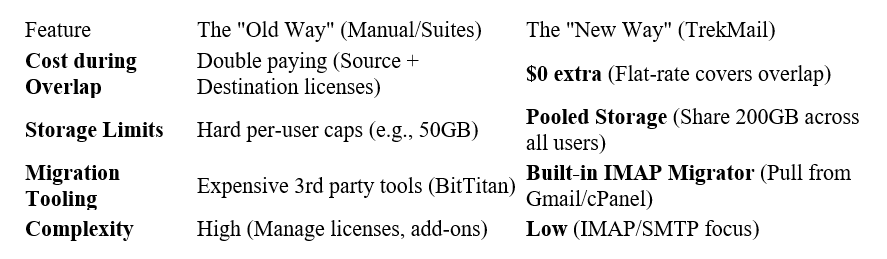
For a single domain, you might manage this manually. For an MSP managing 50 domains, you need a repeatable architecture.
Why TrekMail Fits the Parallel Model
The biggest friction in a Zero Downtime Email Migration is cost. Operators hesitate to spin up the new environment early because they don’t want to pay for two subscriptions at once. They rush the migration to save money, and that is when mistakes happen.
TrekMail eliminates this friction.
Because we charge a flat rate for the server (not the user), you can set up your client’s new environment a month in advance. Run your pre-stage syncs, test the connection, and verify data integrity without worrying about a ticking meter.
Whether you are moving a dental office with 5 users or an agency with 500, the physics remain the same. Respect the DNS TTL, pre-stage your data, and never trust a button that says “Instant.”
For a detailed, step-by-step execution plan, see our guide on Move Email to a New Host Without Downtime: The Practical Cutover Plan.
Comments
Post a Comment