If you ask a veteran IT operator about their first major email migration, they won’t tell you about the successful file transfers. They won’t brag about the uptime. They will tell you about the “ghosts.”
They’ll tell you about the calendar invites that vanished into the ether, the CEO’s iPad that refused to connect for three days, and the sheer panic of watching a “Completed” batch job result in empty inboxes.
Email migration is not a “lift and shift” operation. It is a forensic architectural transition. It intersects with identity, DNS, security, and user psychology. Whether you are a founder moving your first domain to TrekMail to save cash, or an MSP moving 500 seats off on-prem Exchange, the failure modes are identical.
This is the retrospective checklist I wish I had before my first major cutover. This isn’t a high-level overview. This is a list of scars — and how to avoid getting them yourself.
1. The “Invisible” Inventory: Why My User List Was Wrong
The Mistake: I trusted the “Active Users” list in the admin panel.
The Reality: The user list is only about 60% of the environment. The rest is “dark data.”
In my first big move, I exported the user list from Google Workspace, set up the destination mailboxes, and thought I was done. Monday morning hit, and the support tickets started flooding in.
- “Where is the info@ email?”
- “My scanner isn’t working.”
- “I can’t reply to this old thread from Bob.”
An email migration inventory must include every object that can receive mail, not just licensed humans. If you miss a legacy distribution list or a “service account” (which is often just a shared inbox used by a printer), mail will bounce immediately after the switch.
The Forensic Inventory Checklist
Don’t just export users. You need to dig deeper.
1. Phantom Distribution Lists
Groups often outlive their creators. You might have a holiday-party-2019@domain.com that nobody checks, but you also might have new-leads@domain.com that forwards to the sales team. If you don’t migrate the group (or create a shared mailbox), those leads bounce.
2. Service Accounts (The “Tax” Trap)
In the Big Tech suites (Google/Microsoft), you often pay full price ($6−30/month) for a “user” just to have an inbox for invoices@ or printer@.
- The Old Way: You pay $72/year for a mailbox that receives three PDFs a month.
- The TrekMail Way: These accounts are free. Because we use a pooled storage model (e.g., 200GB shared across the whole domain), you can spin up as many utility mailboxes as you want without paying a per-seat tax.
3. The X.500 / LegacyExchangeDN Nightmare
This is the single most technical failure point in Exchange-to-Cloud migrations.
When users email each other internally on Exchange, they don’t use bob@company.com. They use a proprietary address format called LegacyExchangeDN (X.500).
- The Crash: You migrate Bob to a new host. Alice replies to an old email from Bob. Her Outlook client tries to use the cached X.500 address. The new server has no idea what that string of characters means.
- The Result: Alice gets a cryptic “IMCEAEX” Non-Delivery Report (NDR).
- The Fix: You must export the LegacyExchangeDN from the source and add it as an x500 proxy address on the destination. Or, force every user to clear their Outlook Auto-Complete cache (good luck with that).
2. I Ignored the Physics of Throttling
The Mistake: I calculated the timeline based on my gigabit internet connection.
The Reality: The destination server is the bottleneck, not your uplink.
I did the math: “100GB of data. I have a 1Gbps line. This should take 20 minutes.”
It took four days.
Throttling is the deliberate slowing of data transfer by the provider to protect their infrastructure. It typically manifests as HTTP 429 errors (“Too Many Requests”) or “Server Busy” responses.
The Bandwidth Math
You cannot force data faster than the API allows.
- Microsoft 365: Often throttles after ~20GB/day per mailbox.
- Google IMAP: Enforces hard limits. You can download ~2,500MB/day and upload ~500MB/day.
If you have a VIP user with a 50GB mailbox, a “Big Bang” cutover over the weekend is mathematically impossible via standard IMAP. You will hit the wall on Friday night, and the migration will still be running on Tuesday.
The Strategy: Pre-Stage vs. Cutover
To beat the physics, you have to cheat time.
Phase 1: The Pre-Stage (T-Minus 2 Weeks)
Migrate all email older than 90 days while the users are still working on the old system. This is usually 90% of the data. It happens silently in the background. If it throttles, who cares? You have weeks.
Phase 2: The Delta Sync (The Weekend)
On the final weekend, you run a “Delta” pass. The migration tool scans the source, sees that 90% of the mail is already there, and only copies the new items from the last few weeks. This takes hours, not days.
Note: TrekMail’s built-in migration tool handles this “back-off” logic automatically. It senses when the source server is getting angry and pauses the stream to prevent data corruption.
3. The DNS “Split-Brain” Danger Zone
The Mistake: I updated the MX records on Friday night without lowering the TTL.
The Reality: Half the internet kept sending mail to the old server until Saturday afternoon.
Split-Brain DNS occurs when different parts of the internet have different cached versions of your MX records.
- MX Record: Tells the world where to send your email.
- TTL (Time To Live): Tells the world how long to remember that information.
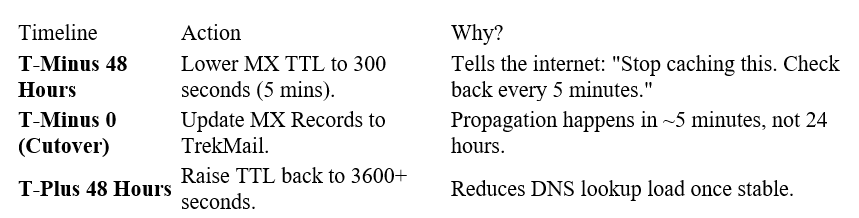
If your TTL is set to 86,400 seconds (24 hours) — which is standard — and you change your MX record at 6 PM Friday, some servers won’t check for the new address until 6 PM Saturday. Any email sent by those servers goes to the old inbox.
The 300-Second Rule
Never change an MX record without preparing the battlefield first.
The SPF Trap
Don’t forget your SPF record. During the transition, you might have mail sending from both the old system (stragglers) and the new system.
- Bad: Overwriting the old SPF immediately.
- Good: Temporarily including both providers in your SPF record during the cutover window (e.g., v=spf1 include:_spf.google.com include:spf.trekmail.net -all). Once the dust settles, remove the old one.
4. Data Fidelity: Why “Total Size” is a Lie
The Mistake: The source mailbox was 10.2GB. The destination showed 9.8GB. I panicked, assuming I lost data.
The Reality: Different servers calculate size differently.
This is the number one cause of heart attacks for IT admins. You run a migration, and the numbers don’t match.
MIME Overhead
Email isn’t just text; it’s a complex web of headers and encoding.
- Exchange stores data in a database format.
- IMAP/Linux stores data as flat files.
- Base64 Encoding (used for attachments) adds about 37% to the file size.
Depending on how the server reports size, a 10MB attachment might look like 13.7MB on one server and 10MB on another. A 5–10% variance in total size is normal.
The Golden Metric: Item Count
Do not validate based on Gigabytes. Validate based on Item Count.
If the source has 10,402 emails and the destination has 10,402 emails, the migration is perfect. The size difference is just math.
The Gmail Label Trap
If you are migrating from Gmail, be careful. Gmail doesn’t use folders; it uses labels.
- Scenario: A user has an email labeled “Inbox,” “Project A,” and “Important.”
- The Migration: A standard IMAP tool sees three “folders.” It copies that single email three times — once into each folder on the destination.
- The Result: The destination mailbox is 3x larger than the source, and the user has duplicates everywhere.
- The Fix: Use a migration tool that understands Gmail labels, or map specific labels to folders explicitly. And for the love of sanity, exclude the [Gmail]/All Mail folder from your sync, or you will duplicate everything.
5. The Client-Side Tsunami (Auth & Mobile)
The Mistake: I thought the project ended when the server said “Completed.”
The Reality: The project ends when the CEO’s iPhone can send email.
You can have a technically perfect server migration and still get fired if the users can’t log in. The biggest friction point today is Modern Auth (OAuth 2.0).
The “Delete and Re-Add” Mandate
In the old days, you could just update the incoming/outgoing server settings in Outlook or iOS Mail. That rarely works anymore.
- Mobile Devices: Modern mail apps use complex tokens to authenticate. If you change the backend provider, the app often gets confused. It tries to use a Google token to talk to a TrekMail server. It fails.
- Outlook Profiles: Outlook is notorious for caching the “Last Known Good” configuration. It will fight you tooth and nail if you try to repair an existing profile.
The Hard Truth:
You must instruct users to delete the account from their device and add it as a new account.
- For SMBs: This is a quick email to the team.
- For Agencies: You need a “Day 1” PDF guide with screenshots. “Step 1: Delete old account. Step 2: Add new account.”
The TrekMail Advantage:
Because TrekMail focuses on standard, compliant IMAP/SMTP without proprietary “connectors,” client setup is often simpler. We don’t force you into a specific app; we work with the tools your users already know (Apple Mail, Outlook, Thunderbird).
6. The “Clean Slate” Alternative
In my retrospective, the biggest question I ask is: “Did we actually need to move 15 years of email?”
Migrating 50GB of data per user is expensive, risky, and time-consuming. It creates a massive “blast radius” if something goes wrong.
The Old Way:
You pay Google or Microsoft for 50GB of storage per user forever, just to keep old receipts from 2012. You are paying rent on a digital storage unit that nobody visits.
The Smart Operator Way:
- Archive Locally: Export the old mailbox to a PST file or a local archive. Give it to the user. “Here is your history.”
- Start Fresh: Create a new, empty mailbox on TrekMail.
- Pooled Storage: With TrekMail, you aren’t penalized for storage. If you do decide to migrate the history, our pooled storage model means you don’t need to buy a “Premium” license just because one user has a 40GB archive. The 15GB user and the 40GB user share the same pool.
Starting fresh is often the best productivity hack for a team. It forces a cleanup. It makes the email client faster. And it makes the migration instant.
Summary: The Operator’s Runbook
If I were doing it again tomorrow, this is my non-negotiable protocol:
- Inventory: Scan for aliases, distribution lists, and X.500 addresses. Do not trust the “Active Users” count.
- Pre-Stage: Move 90% of data weeks in advance. Don’t fight the bandwidth physics.
- TTL: Lower DNS TTL to 300 seconds two days before the switch. This is the difference between a 5-minute downtime and a 24-hour outage.
- Validate: Check Item Counts, not Gigabytes. Ignore the MIME overhead noise.
- Communicate: Tell users explicitly: “You will need to re-add your email to your phone.”
Migration is stressful, but it’s manageable if you respect the physics of the internet. And if you’re tired of paying per-user fees just to host an archive, it might be time to look at TrekMail’s Plans.
For the complete technical execution plan, refer to our Email Migration: The Step-by-Step Guide to Move Mail Without Losing Emails or Downtime (2026).
Comments
Post a Comment