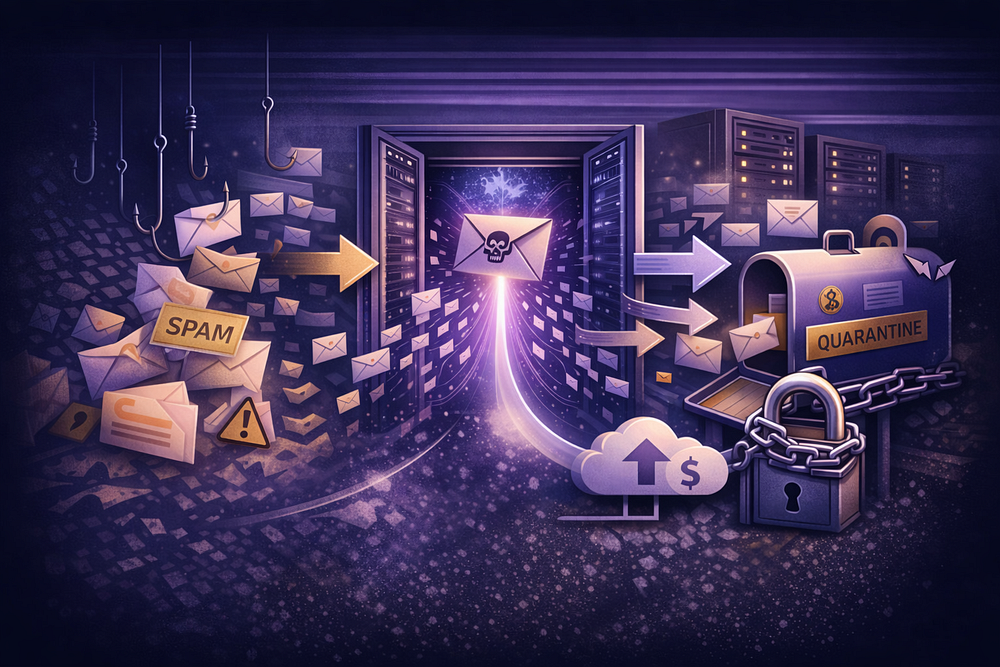
Enabling a domain catch-all transforms your email server from a secure fortress into a public intake valve. While it ensures you never miss a lead due to a typo (sale@ vs sales@), it fundamentally breaks the “closed system” security model of modern email.
Without strict architectural guardrails, a catch-all invites Directory Harvest Attacks (DHA), destroys domain reputation via backscatter, and buries legitimate mail under gigabytes of noise.
This guide details the technical implementation of a safe catch-all architecture, moving beyond the basic “on/off” toggle to specific routing rules, loop prevention, and quarantine sinks.
For a comprehensive risk analysis, read Catch-All Email: Why It Looks Simple — and Why It Becomes an Ops Problem (2026).
The Protocol Gap: Envelope vs. Header
To control a catch-all, you must distinguish between the two layers of email routing. Confusing them is the primary cause of “New Hop” authentication failures.
- The Envelope (RFC 5321): The RCPT TO command used during the SMTP handshake. A catch-all modifies behavior here: instead of rejecting unknown recipients with 550 User Unknown, the server returns 250 OK and accepts the payload.
- The Header (RFC 5322): The To: field visible in the email client.
When you enable a catch-all, you instruct the MTA to ignore the Envelope destination if it doesn’t match a local user, rewriting the Envelope to a fallback address while leaving the Header intact.
The “New Hop” Failure Mode
The most dangerous configuration is forwarding catch-all traffic to an external provider (e.g., Gmail or Outlook.com). This creates a “New Hop” scenario that breaks authentication:
- Original Sender: client@bank.com (IP: 1.2.3.4)
- Your Server: Accepts mail for typo@yourdomain.com → Forwards to you@gmail.com.
- Gmail Sees: Connection from Your Server (IP: 5.6.7.8) claiming to be Bank of America.
Result: SPF fails because your IP is not authorized by the bank. If the sender has a DMARC policy of p=reject, the email is silently dropped. You enabled the catch-all to ensure delivery, but the forwarding mechanism caused the data loss.
Strategy 1: The “Quarantine Sink” Architecture
If you must run a catch-all, treat all wildcard traffic as hostile. Do not route it to a primary inbox. Build a Quarantine Sink.
This architecture accepts the mail (satisfying the business requirement) but isolates it from daily workflows (protecting operational sanity).
Implementation Logic
- Accept: Server accepts *@domain.com.
- Tag: Server identifies the recipient is not a specific user.
- Isolate: Route to a dedicated storage bucket (Shared Mailbox).
- Suppress: Mark with high Spam Confidence Level (SCL) and suppress auto-replies.
Configuration: Microsoft 365 (Exchange Online)
In Exchange Online, you cannot safely use the default settings. You must use a Transport Rule.
Prerequisites:
- Domain set to Internal Relay (Disables Directory Based Edge Blocking — DBEB).
- Dedicated Shared Mailbox: catchall_sink@domain.com.
Transport Rule Logic:
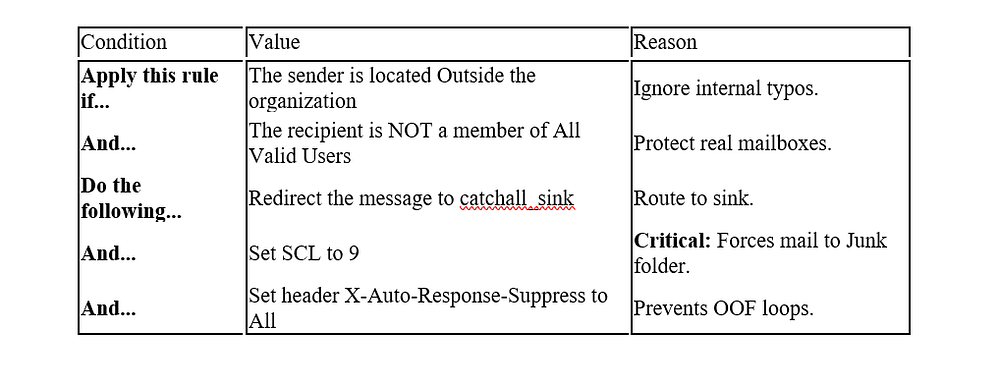
Why SCL 9?
This ensures Outlook treats the mail as junk. It prevents mobile notifications and keeps the “Inbox” clean. You review the sink weekly, not hourly.
Strategy 2: Partial Wildcards (Regex Routing)
If you manage your own MTA (Postfix/Exim) or use a provider supporting regex, avoid the global *@domain.com wildcard. Use Partial Wildcards to reduce the attack surface.
This allows you to capture specific categories of addresses without opening the floodgates to admin@, hr@, or invoice@ attacks.
Postfix PCRE Example
Use a Perl Compatible Regular Expression (PCRE) map to define valid patterns.
# /etc/postfix/virtual_pcre
# Allow any user starting with “sales-” (e.g., sales-q1, sales-webinar)
/^sales-.*@yourdomain\.com$/ sales-team@yourdomain.com
# Allow common “support” typos (e.g., suport, supprt)
/^supp?o?rt@yourdomain\.com$/ support@yourdomain.com
# REJECT everything else (Implicitly handled if no wildcard exists)
This method blocks 90% of Directory Harvest Attacks. A spammer blasting david@ or office@ receives a hard 550 Reject, saving bandwidth and storage.
Incident Prevention: Loops and Backscatter
Two specific operational failures plague catch-all setups: The Loop of Death and Backscatter Blacklisting.
1. The Loop of Death (Error 5.4.14)
Scenario: Catch-all forwards to user@domain.com. user has an “Out of Office” (OOF) enabled.
- Spammer sends to random@domain.com.
- Catch-all delivers to user.
- user auto-replies to the Spammer.
- Spammer address is invalid/spoofed; the auto-reply bounces.
- The bounce returns to random@domain.com.
- Loop: Catch-all accepts the bounce, delivers to user, who auto-replies again.
Symptoms:
- Exchange Error: 550 5.4.14 Hop count exceeded — possible mail loop.
- Header: X-MS-Exchange-Inbox-Rules-Loop.
Fix: You must configure the MTA to never auto-reply to messages caught by a wildcard rule. Ensure the X-Auto-Response-Suppress: All header is applied to all catch-all traffic.
2. Backscatter (Reputation Suicide)
If your catch-all accepts a message (250 OK) and your spam filter rejects it after the SMTP session closes, your server generates a Non-Delivery Report (NDR).
- Spammer spoofs innocent@victim.com.
- Your server sends the NDR to innocent@victim.com.
- Result: You are now the spammer. Your IP will be listed on ips.backscatterer.org.
Fix: You must reject invalid recipients at the SMTP Edge (during the connection), OR you must accept and silently drop (quarantine) spam. Never generate outbound NDRs for catch-all traffic.
The TrekMail Solution: Architecture over Hacks
Most organizations enable catch-alls to solve a pricing problem, not a technical one. They don’t want to pay $6/user/month for sales@, support@, and info@, so they use a catch-all to route everything to one user.
TrekMail eliminates this financial constraint, allowing you to architect your email correctly.
- Unlimited Aliases: Because we use a Pooled Storage model, you can create 50 legitimate aliases or mailboxes without paying extra. You don’t need a catch-all to save money.
- Managed Delivery: If you must forward mail, our infrastructure handles the IP reputation.
- No “Internal Relay” Complexity: We handle the routing logic. You don’t need to disable edge blocking or write PowerShell scripts to manage flow.
For SMBs: Stop using catch-alls as a “poor man’s alias.” Create the actual addresses you need.
For Agencies: Migrate clients from complex Exchange rules to simple, flat-rate hosting where every user gets their own identity.
Comments
Post a Comment