
You have a deadline. You have 500 mailboxes to move. You bought a license for a premium migration tool because the sales page promised “100% data fidelity” and “zero downtime.” You are expecting a simple file transfer operation: drag, drop, done.
If you proceed with that mindset, you will lose data.
Email migration software is not a magic wand; it is a specialized IMAP client that automates FETCH and APPEND commands between two hostile servers. It cannot override the laws of physics, it cannot bypass provider throttling, and it cannot fix data that is already corrupt on the source.
This guide strips away the marketing fluff to reveal the forensic reality of migration mechanics. We cover what software actually controls, where the “guarantees” break down, and how to verify success using the protocols detailed in IMAP Migration: How It Works and How to Migrate Mailboxes Safely.
The “Guarantee” Illusion: Marketing vs. Physics
Migration vendors sell peace of mind against a backdrop of variables they do not control. A software tool runs on your machine or a cloud worker, but it is entirely at the mercy of the Source Server (Host A) and the Destination Server (Host B).
If Host B returns an HTTP 429 Too Many Requests error because you are uploading too fast, the software cannot “guarantee” a completion time. It can only wait.
The Reality Gap
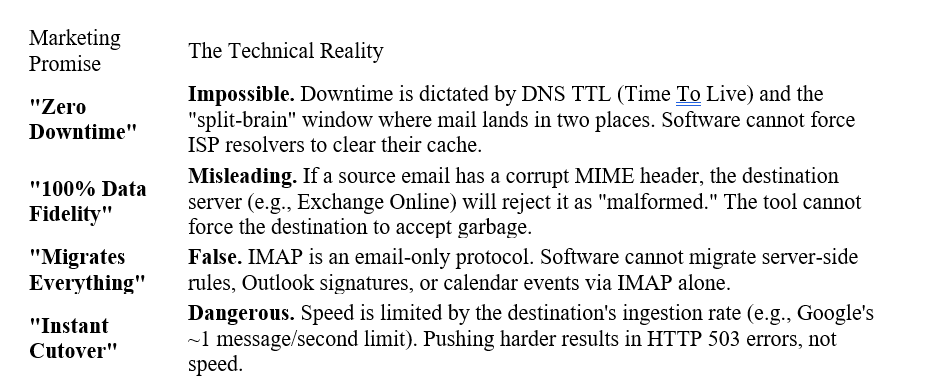
What Migration Software Can Guarantee (The Control Plane)
While software cannot guarantee the outcome (due to external factors), it must guarantee the process. High-quality migration software provides a forensic audit trail of every attempt.
1. The Chain of Custody (Logs)
The only real guarantee is the log file. A professional tool provides a CSV or JSON log of every single item touched. If an item fails, it must be logged with a specific error code.
Critical Log Indicators:
- Skipped Item Logs: A list of Message-IDs that were not transferred.
- Google Error 11001/11002: Indicates the tool cannot reach the source IMAP server (often a firewall or DNS issue).
- Error 18010: “IMAP Server Busy.” Common on legacy Linux servers when the tool opens too many concurrent connections.
2. Retry Logic (Exponential Backoff)
When a destination server like Microsoft 365 sends a “Backpressure” signal, a basic script crashes. Professional software guarantees resilience. It detects the throttle and sleeps.
# Conceptual logic of a robust migration tool
def migrate_message(message_id):
retries = 0
wait_time = 5 # seconds
while retries < 5:
try:
destination.append(message_id)
return “SUCCESS”
except ThrottlingError:
# HTTP 429 or NO [OVERQUOTA]
log(f”Throttled. Sleeping for {wait_time} seconds…”)
sleep(wait_time)
wait_time *= 2 # Exponential backoff
retries += 1
log_failure(message_id, “Max retries exceeded”)
return “FAILED”
3. Folder Mapping (Regex Translation)
Software guarantees that it will attempt to map folder names based on your rules. This is critical for the “Sent Items” trap.
- Source (cPanel/Dovecot): INBOX.Sent Messages
- Destination (Exchange/TrekMail): Sent Items
Without a guarantee of Regex Mapping, your users will see an empty Sent folder because their history is hiding in a custom folder named “Sent Messages.”
The “No-Go” Zone: What No Software Can Fix
There are hard limits where the software becomes irrelevant. If you hit these walls, no amount of “premium support” will help you.
1. The Throttling Hard Cap
Google Workspace limits IMAP downloads to approximately 2,500 MB per day per account.
- Scenario: You have a 10GB mailbox to migrate from Gmail.
- The Math: 10GB / 2.5GB = 4 days.
- The Hard Truth: No software can make this faster. If the tool tries to pull 10GB in one hour, Google will sever the connection and lock the account for 24 hours.
2. The “Ghost” Message (Corrupt Source)
Legacy email servers often contain messages with broken MIME boundaries or zero-byte bodies.
- The Failure: The migration tool reads the header, but when it tries to FETCH the body, the server returns nothing.
- The Result: The destination server rejects the APPEND command because the message violates RFC standards.
- The Fix: The software must skip this item and log it. It cannot “fix” the corruption.
3. The 2025 Auth Cliff (Basic Auth vs. OAuth)
As of 2025, Microsoft and Google have deprecated Basic Auth (username/password) for most IMAP connections.
- The Risk: Old migration tools that rely on simple credential pairs will fail to connect.
- The Requirement: Your software must support OAuth 2.0 (Service Accounts for Google, App Registrations for Azure). If your tool asks for a password instead of a token/certificate, it is obsolete.
The “Easy Button” for Migration
If you are migrating to TrekMail, we bypass the need for expensive third-party software licenses.
- For SMBs: You don’t need to learn Regex. TrekMail’s import engine automatically maps “Sent Messages” to “Sent Items” and excludes the [Gmail]/All Mail duplicate trap.
- For Agencies: Instead of paying $15/seat for a migration license, you get the migration engine included. You can migrate 100 domains without eating into your margin.
- The Truth: We are IMAP/SMTP only. We migrate your email perfectly. We do not migrate Calendars or Contacts.
Where Data Loss Actually Happens (It’s Not the Tool)
If the software logs say “Success” but the user claims data is missing, the failure is almost always procedural.
1. The UIDVALIDITY Reset
IMAP relies on UIDs to track which messages have been moved. If an admin runs a “Repair Mailbox” or “Reindex” command on the source server during the migration, the UIDVALIDITY value changes.
- The Consequence: The migration software thinks every single email is new. It re-migrates everything. You now have duplicates of every email.
2. The “Zombie” Delete
This happens during the Delta Sync phase.
- Day 1: You migrate User A. Email #100 is copied to the new server.
- Day 2: User A deletes Email #100 on the old server.
- Day 3: You run a Delta Sync.
- The Issue: Most software is “Additive Only.” It looks for new mail to add. It does not look for deleted mail to remove (to prevent accidental data loss).
- Result: Email #100 is gone from the old server but remains on the new server. The user thinks the migration “brought back old trash.”
3. The DNS Gap
If you do not lower your MX Record TTL (Time To Live) to 300 seconds (5 minutes) before the switch, some mail servers will continue sending email to the old server for up to 24 hours.
- The Loss: If you decommission the old server too early, those emails bounce. If you leave it running but forget to run a final “Cleanup Delta,” those emails are stranded on the old host.
A Practical Risk Reduction Plan
Since you cannot rely on a software guarantee, you must rely on a Verification Protocol.
Step 1: The Item Count Audit
Never measure success in Gigabytes. Encoding differences (MIME overhead) make size unreliable. Measure in Items.
- Source Inbox: 4,205 items.
- Destination Inbox: 4,201 items.
- Verdict: 99.9% success. The 4 missing items are likely corrupt or calendar invites. This is acceptable.
Step 2: The “Sent” Check
Before handing over the account, send a test email from the new system. Check the Sent folder.
- Pass: The test email sits chronologically next to the migrated history.
- Fail: The test email is in Sent Items, but history is in Sent Messages. You must remap and move the folders immediately.
Step 3: The Final Delta
Do not shut down the old server immediately.
- Switch DNS.
- Wait 24 hours.
- Run one final Delta Sync to catch any stragglers that routed to the old IP during propagation.
Conclusion
Email migration software guarantees execution, not success. It guarantees it will try to move the data, retry if throttled, and log the result. It does not guarantee that your source data is clean, that your DNS is propagated, or that Google won’t block your IP.
The guarantee of a successful migration comes from the operator, not the tool. It comes from pre-staging data, managing TTLs, and verifying item counts.
Stop fighting DNS and throttling limits.
TrekMail handles the complexity of migration and hosting so you don’t have to.
Try TrekMail for free.
Comments
Post a Comment