You are 14 hours into a migration. The progress bar hits 68% and stops. The console throws a generic “Connection Reset” error.
Do you restart the job? If you do, you risk duplicating the 68% of mail that already moved, doubling your storage costs and creating a nightmare for the user. Do you try to “resume”? If your email migration tool doesn’t track state perfectly, you might skip the specific folder that caused the crash, leaving the user with data gaps.
Migration failures are not edge cases; they are statistical certainties. Network blips, throttling thresholds, and corrupt MIME headers ensure that almost every large-scale move will break at least once. The difference between a minor delay and a catastrophic data loss event isn’t your bandwidth—it’s the recovery logic of your software.
In this guide, we dissect the specific features an email migration tool must have to handle failure safely, ensuring you can resume without corruption. For a broader look at the physics of the protocol itself, read our guide on IMAP Migration: How It Works and How to Migrate Mailboxes Safely.
The Failure Modes: Why Your Email Migration Tool Will Stop
Before you can select a tool that recovers well, you must understand what knocks it offline. Most “failures” are actually protective measures by the mail providers.
1. Throttling and Rate Limiting (The “429” Wall)
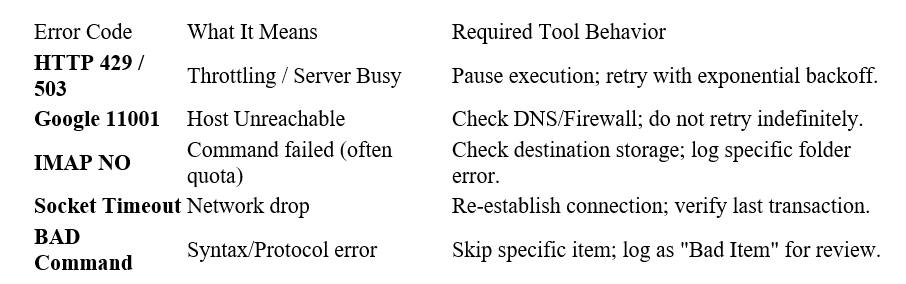
Cloud providers protect their infrastructure by limiting how fast you can read or write data. If your tool treats these limits as errors rather than instructions to wait, your migration will fail.
- Google Workspace: Enforces a strict download limit (approx. 2.5GB per day via IMAP). If you exceed this, the server cuts the connection and locks the account for up to 24 hours. A “dumb” tool will keep retrying immediately, extending the lockout.
- Microsoft 365: Uses “Backpressure.” If the mailbox database is under load, it returns HTTP 429 or 503 errors.
- Legacy Linux Servers (Dovecot/Courier): Often have a max_connections limit per IP. If your tool opens 50 threads to speed things up, the server will ban your IP.
The Requirement: Your tool must implement Exponential Backoff. It must detect the specific error code (e.g., 429 Too Many Requests), pause for 5 seconds, then 10, then 20, retrying until the server accepts the connection again.
2. The “Poison” Item
Some emails are technically corrupt. They may have malformed MIME headers, attachments that exceed the destination’s size limit (e.g., a 35MB PDF going to a server with a 25MB cap), or deep folder recursion (>300 levels).
- The Risk: A basic tool tries to move the item, crashes, restarts, hits the same item, and crashes again. This is an infinite loop.
- The Requirement: Your tool must have a “Bad Item Limit” (skip count) and a “Skipped Item Log.” It should skip the poison item, log it, and continue with the rest of the mailbox.
3. The Authentication Cliff (Modern Auth)
As of 2025, Basic Auth (username/password) is dead or dying on major platforms.
- Microsoft: Has deprecated Basic Auth for Exchange Online.
- Google: Requires OAuth 2.0 or App Passwords.
If your migration runs for 3 days, the initial OAuth access token will expire (usually after 1 hour). If your tool doesn’t have logic to refresh the token automatically using the refresh token, the migration dies silently in the middle of the night.
The “Resume” Requirement: Idempotency and State
The most critical feature of any email migration tool is idempotency. This is a fancy engineering term that means: “If I run the same command twice, the result should be the same.”
If you run a migration tool against a mailbox that is half-full, the tool should detect the existing items and skip them. It should not create duplicates.
The UIDVALIDITY Crisis
IMAP servers assign a Unique Identifier (UID) to every message. A naive tool tracks progress by saying, “I have migrated UIDs 1 through 5000.” When it resumes, it asks the source for UIDs > 5000.
The Trap: If the source server crashes and is restored from backup, or if a “repair” is run on the mailbox, the UIDVALIDITY value changes. This tells the migration tool, “I am a new folder, and all these emails are new.”
- Result: The tool re-migrates everything. You end up with duplicates of every single email.
- The Fix: Professional tools detect UIDVALIDITY changes. If detected, they switch to a slower but safer deduplication method, such as hashing the Message-ID header.
Code Block: The Logic of a Safe Resume
A robust script or tool operates on logic similar to this pseudocode:
def migrate_folder(source_folder, dest_folder):
# Check if UIDVALIDITY has changed since last run
if source.uidvalidity != state_db.last_uidvalidity:
log_warning(“UIDVALIDITY changed! Switching to Header Deduplication.”)
use_header_dedupe = True
source_items = source.fetch_uids(source_folder)
dest_items = dest.fetch_message_ids(dest_folder)
for item in source_items:
# CHECK 1: Is it already there?
if use_header_dedupe:
if item.message_id in dest_items:
continue
else:
if item.uid <= state_db.last_migrated_uid:
continue
# CHECK 2: Is it a ‘poison’ item?
if item.size > dest.max_size:
log_error(f”Skipping {item.uid} — Too large ({item.size})”)
continue
# EXECUTE
try:
dest.append(item)
except ThrottlingError:
wait_and_retry()
The Namespace Trap: Why Folders Disappear
One of the most common “failures” isn’t a crash—it’s data landing in the wrong place. This happens because different email servers use different “delimiters” to separate folders.
- Dovecot (Linux/cPanel): Often uses a dot (.). Example: INBOX.Clients.ProjectA
- Exchange/TrekMail: Uses a slash (/). Example: INBOX/Clients/ProjectA
If your tool doesn’t handle Regex Folder Mapping, it might migrate the folder INBOX.Clients.ProjectA as a literal folder name at the root level. The user will log in and see a messy list of folders instead of their organized tree.
The “Sent” Folder Problem:
- Source: Sent Messages
- Destination: Sent Items
- Failure: The tool copies Sent Messages as a custom folder. The user’s actual “Sent” box is empty.
- Solution: The tool must map ^Sent Messages$ -> Sent Items.
Visibility: The Difference Between “Failed” and “Finished”
A migration tool that says “Completed with Errors” is useless unless it tells you what the errors were.
You need Item-Level Logging.
- Summary Logs are Insufficient: Knowing “5 items failed” doesn’t help. Was it 5 spam emails, or 5 legal contracts?
- CSV Export: The tool must export a CSV file listing every skipped item, its subject line, its folder path, and the reason for failure.
The Operator’s Workflow:
- Run the migration.
- Check the “Skipped Items” CSV.
- Filter by error type.
- Timeout/Network: Re-run the migration (Delta pass).
- Large Item: Manually download/upload or ignore.
- Corrupt: Notify the client.
The “Easy Button”: How TrekMail Handles Recovery
You can script this yourself using tools like imapsync and a lot of patience, or you can pay expensive per-user fees for SaaS tools that still require manual oversight.
Or, you can use the infrastructure that handles it for you.
TrekMail includes a built-in migration engine designed specifically for the “fail and resume” reality of email. We don’t charge extra for it because we believe onboarding shouldn’t be a profit center.
- For SMBs: TrekMail sets this up automatically. You enter your old credentials, and our engine handles the backoff, the retries, the “Sent” folder mapping, and the “poison item” skipping without you touching a line of code or DNS settings.
- For Agencies: TrekMail applies this template to all 100 domains instantly. If a migration fails mid-run due to a source server timeout, our system pauses, waits, and resumes automatically, notifying you only if manual intervention is truly required.
We built our platform to replace the “per-user tax” of Google Workspace and Microsoft 365 with a flat-rate professional email solution. The migration tool is just the first step in simplifying your stack.
Conclusion
The difference between a successful migration and a disaster is not whether errors occur—it is how your email migration tool handles them.
When choosing your tool, demand three things:
- Exponential Backoff to handle throttling without crashing.
- State Awareness (UIDVALIDITY) to allow restarts without duplication.
- Regex Folder Mapping to ensure the folder tree survives the move.
Don’t rely on hope. Rely on a tool that assumes failure is an option and plans for it.
Stop fighting DNS and broken scripts. Try TrekMail for free and experience professional email hosting built for control.
Comments
Post a Comment