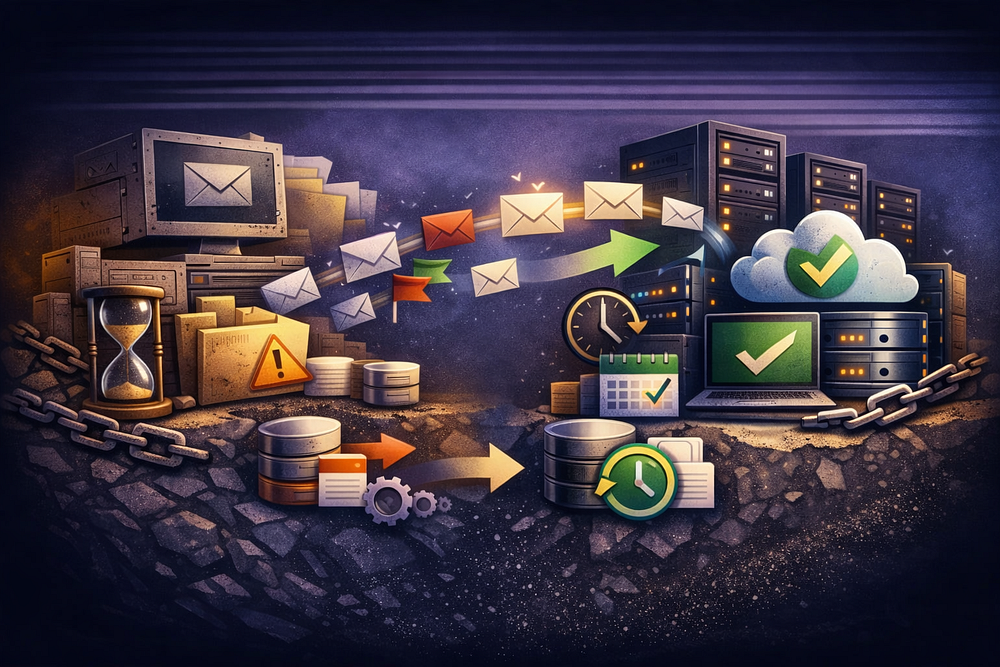
You have moved the MX records. Mail is flowing. But if the “Sent” folder is empty and read emails are showing up as unread, the migration has failed.
Email migration is not a file transfer; it is a state synchronization between two databases that often speak different dialects. If you ignore the metadata — flags, folder types, and timestamps — you break the user’s workflow.
This guide covers the forensic mechanics of moving email data without losing state. For the broader architectural strategy, read IMAP Migration: How It Works and How to Migrate Mailboxes Safely.
The 4 “Silent Killers” of Migration
Most tools successfully copy the message body (RFC 5322 content). They fail at copying the metadata (RFC 3501 state). Here are the four elements that generate support tickets.
1. The “Sent” Folder Disconnect
This is the most common failure. Source servers and destination servers rarely agree on what the “Sent” folder is named.
- The Symptom: The user logs in, clicks “Sent,” and sees nothing. Their history exists, but it is hidden in a generic folder named Sent Messages or INBOX.Sent.
- The Fix: You must map the source folder name to the destination’s “Special Use” folder (RFC 6154). If you don’t, the client treats the old sent mail as a regular archive folder.
2. The \Seen Flag (Read Status)
IMAP uses system flags to track message state.
- Critical: The \Seen flag determines if an email is Read or Unread. If this fails to transfer, users will face an inbox with 10,000 “Unread” messages.
- Impossible: The \Recent flag cannot be migrated. This is a session-specific flag defined by the protocol. Users may see old emails as “new” in their client simply because they are new to this server. Warn them in advance.
3. The INTERNALDATE vs. Header Date
Email clients display the Date: header from the message. However, IMAP servers sort and index based on INTERNALDATE (the time the message arrived on the server).
- The Risk: If your migration tool resets INTERNALDATE to the time of migration, mobile clients and webmails will show 10 years of email as arriving “Today.”
- The Fix: Ensure your tool preserves INTERNALDATE attributes during the APPEND command.
4. The Gmail “All Mail” Trap
Gmail does not use folders; it uses labels. An email labeled “Inbox” and “Project” is a single object.
- The Risk: IMAP presents labels as physical folders. If you migrate the [Gmail]/All Mail folder, you will download every message a second time, doubling your storage usage and creating massive duplication on the destination.
- The Fix: You must explicitly exclude [Gmail]/All Mail from the sync list.
Folder Mapping: The Regex Solution
You cannot rely on auto-detection. You must force the translation of folder names to match the destination standard.
The Translation Matrix
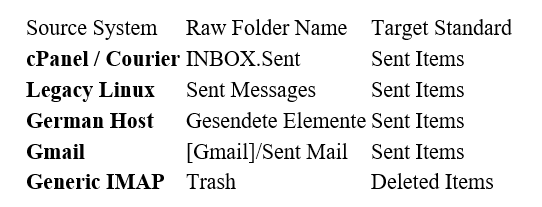
CLI Implementation (imapsync)
If you are using imapsync, use regex to rename folders on the fly.
# Map “Sent Messages” to “Sent Items”
— regextrans2 ‘s/^Sent Messages/Sent Items/’
# Map cPanel dot-notation to standard root folders
— regextrans2 ‘s/^INBOX\.Sent/Sent Items/’
— regextrans2 ‘s/^INBOX\.Trash/Deleted Items/’
# Exclude Gmail All Mail to prevent duplication
— exclude “\[Gmail\]/All Mail”
The TrekMail “Easy Button”
If you are migrating to TrekMail, you do not need to write regex.
- For SMBs: TrekMail’s import engine automatically detects the source type (Gmail, cPanel, Exchange) and applies the correct folder mapping template.
- For Agencies: You can apply this template to 100 domains instantly via our dashboard. We handle the Sent Items mapping and All Mail exclusion so you don’t have to touch the CLI.
Verification: Forensic Auditing
Do not trust the “Success” status bar. Verify the data integrity.
Do NOT verify by Size (GB).
A 10MB attachment on a Linux server may take up 13MB on an Exchange server due to MIME encoding overhead and block size differences. Size variance is expected.
Verify by Item Count.
- Source: Inbox = 4,102 messages.
- Destination: Inbox = 4,102 messages.
- Tolerance: <1% variance is acceptable (usually due to corrupt MIME headers or calendar invites, which TrekMail does not migrate).
The Verification Routine
- Check Unread Counts: If Source has 50 unread and Destination has 4,000, the \Seen flag failed.
- Check Sent Integrity: Send a test email from the new account. Verify it appears in the same folder as the migrated historical mail. If they are in different folders, your mapping failed.
- Check Timestamps: Scroll to an email from 2019. Ensure the date displayed is 2019, not today.
The Rerun Strategy (Delta Sync)
You will likely need to run a “Delta Pass” after the initial migration to catch new mail. This is where data corruption happens.
The UIDVALIDITY Risk
IMAP folders have a unique ID (UIDVALIDITY). If the source server is rebooted or restored from backup during migration, this ID changes.
- The Consequence: The migration tool sees the folder as “new” and re-copies every single email. You end up with duplicates of everything.
- The Prevention: Never run a “repair” or “reindex” on the source server while a migration project is active.
The “Zombie” Data
If a user deletes an email on the source after the initial sync, a standard additive Delta sync will not delete it from the destination.
- Why: Most tools default to “safe mode” (no deletions).
- The Fix: Accept that deleted items may reappear. Do not enable “Mirror Deletes” ( — delete2) unless you are absolutely certain of your directionality, or you risk wiping the new mail on the destination.
Conclusion
A successful mailbox migration is boring. The folders are where users expect them, the read status is correct, and the history is continuous.
- Map your folders using regex or a template.
- Exclude [Gmail]/All Mail.
- Verify by item count, not size.
- Preserve the \Seen flag.
If you are tired of fighting regex and CLI tools, TrekMail handles the infrastructure for you. We built our migration engine to handle these edge cases automatically, so you can focus on your business, not your DNS.
Comments
Post a Comment