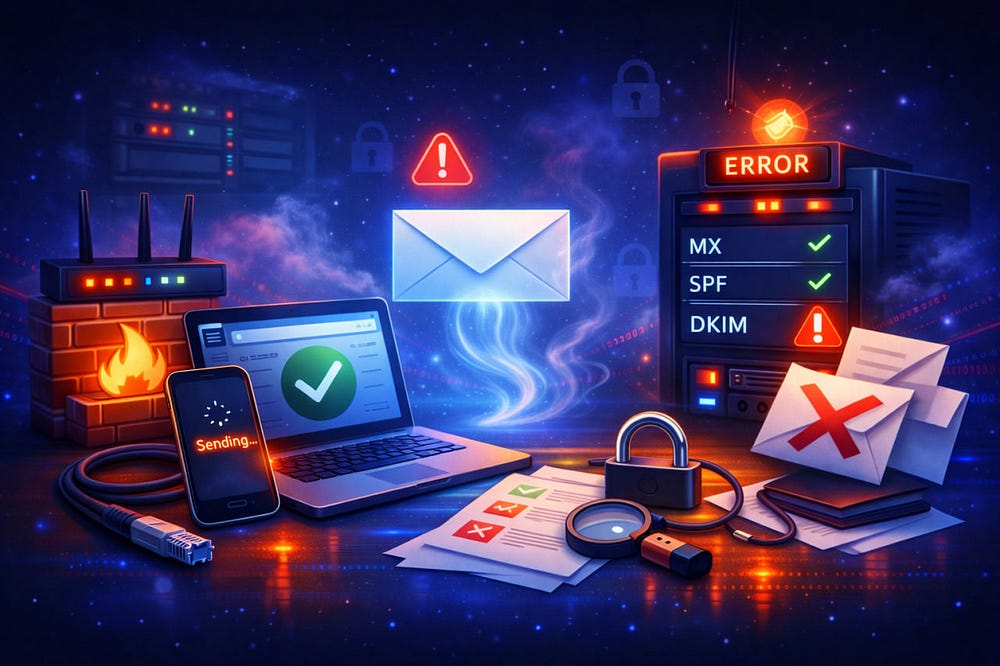
You followed the instructions. You bought the domain, created the user, and logged into the webmail. You can see the inbox. You feel like you’ve successfully managed to set up email on my domain.
Then you try to send a test message from your phone, and… nothing. It sits in the Outbox, spinning. Or maybe you send an email to your new address from your personal Gmail, and it vanishes into the ether — no bounce, no error, just silence.
This is the “Zombie State” of email infrastructure: The lights are on (login works), but nobody is home (mail flow is dead).
It is the single most frustrating moment for any Operator, whether you’re a founder setting up your first domain or an MSP managing a hundred clients. The confusion stems from a simple technical reality: Webmail and Mail Clients use different languages.
Webmail uses HTTPS (Port 443) — the same protocol as browsing a website. Sending and receiving mail via Outlook, Apple Mail, or your CRM uses SMTP and IMAP. Just because you can load the webpage doesn’t mean your mail server doors are open.
This guide is your rapid-response runbook. We will move from 60-second triage to deep-dive diagnostics, helping you isolate the break in your infrastructure.
60-Second Triage: Identify Your Symptom
Before you start messing with DNS records and risking a total outage, stop. Identify exactly which part of the pipeline is broken. “It doesn’t work” is not a diagnosis.
Which of these three scenarios are you in?
1. The “Ghost Town” (Can’t Receive)
- The Symptom: You can log in and send emails out, but you never receive anything. You send a test email from Gmail, and it never arrives. You don’t get a bounce-back message immediately.
- The Reality: The internet doesn’t know where you live. Your MX (Mail Exchange) records are likely missing or pointing to the wrong server.
2. The “Outbound Block” (Can’t Send)
- The Symptom: You click “Send” in Outlook or on your iPhone, and the bar hangs halfway. Eventually, you get a “Connection Timed Out” or “Server Unreachable” error.
- The Reality: Your network is choking the connection. This is usually a firewall issue, an ISP blocking Port 25, or an encryption mismatch (trying to use SSL on a TLS port).
3. The “Untrusted Pariah” (Spam/Bounces)
- The Symptom: You send mail, but it lands in the recipient’s Junk folder, or you get an immediate bounce with error 550 5.7.1.
- The Reality: You lack an ID card. You haven’t configured SPF, DKIM, or DMARC. The receiving server thinks you are a spammer spoofing the domain.
The Debug Checklist: How to Set Up Email on My Domain Correctly
If you want to set up email on my domain without the headaches, you have to verify the infrastructure layer by layer. Do not skip steps.
1. MX Records
MX records are the GPS coordinates for your email. When someone sends mail to you@yourdomain.com, their server asks DNS: “Who handles mail for this domain?”
If you get this wrong, mail is never delivered to your provider. It’s lost in transit.
- The Priority Rule: MX records have a “Priority” number (0, 10, 20). Lower numbers are tried first. If you have old records from a previous host (like GoDaddy or Bluehost) mixed with your new records, mail will be split between them. Delete the old records.
- The CNAME Trap: An MX record must point to an A Record (an IP address) or a Hostname that resolves to an A Record. It must never point to a CNAME (Alias). This violates RFC 2181 and will cause delivery failures that look like random glitches.
- Propagation Lag: DNS isn’t instant. It can take 24 to 48 hours to propagate globally. If you just changed settings, use a tool like whatsmydns.net to see if the world sees your new settings yet.
2. Mailbox Status & Quotas (The Container)
Sometimes the network is fine, but the bucket is full.
- Does the user actually exist? It sounds stupid, but check the spelling. Did you create support@ or info@?
- The Storage Cliff: In the “Old Way” of hosting (Google Workspace, M365), every user has a hard limit (e.g., 30GB). If one user hits that limit, they stop receiving mail. The sender gets a bounce saying “Mailbox Full.”
- The TrekMail Fix: We use Pooled Storage. If you have 10 users and 200GB of space, it’s shared. One heavy user doesn’t break the system. You don’t pay for empty space on unused accounts.
3. SMTP Configuration (The Outgoing Pipe)
This is where 90% of “I can’t send” tickets come from. Webmail bypasses this, but your desktop client needs the exact coordinates.
The Golden Rule of Ports:
- Port 25 is for Servers, not Humans. Most residential ISPs (Comcast, Verizon, AT&T) block Port 25 outbound to prevent spam bots. If you are trying to connect on Port 25 from your home office, it will fail.
- Use Port 587 (STARTTLS): This is the modern standard for submission.
- Use Port 465 (Implicit SSL): The older, but still valid, secure standard.
Correct Settings Table:
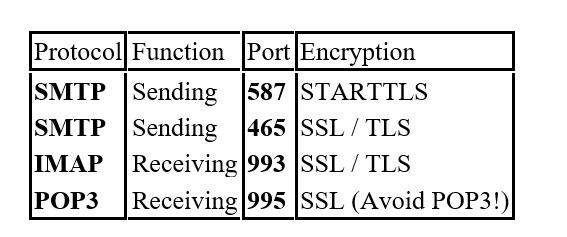
Note on POP3: TrekMail does not support POP3. It is an obsolete protocol that deletes mail from the server, creating data silos. Use IMAP.
4. Hostname Accuracy
When you set up email on my domain, you cannot guess the server name.
- Wrong: mail.google.com (Generic)
- Wrong: smtp.yourdomain.com (Unless you specifically created a CNAME for this)
- Right: The exact host provided in your welcome email (e.g., smtp.trekmail.net or smtp.office365.com).
5. The Auth Triad (SPF, DKIM, DMARC)
If your mail sends but lands in Spam, your DNS is missing authentication records. In 2025, these are not optional. Google and Yahoo will block you without them.
- SPF (Sender Policy Framework): A text record listing the IP addresses allowed to send for you.
- Common Error: You can only have one SPF record. If you have two lines starting with v=spf1, both are invalid. Merge them.
- DKIM (DomainKeys Identified Mail): A digital signature attached to every email. It proves the message wasn’t tampered with in transit.
- DMARC: The rulebook that tells receivers what to do if SPF or DKIM fails. Start with p=none (monitor mode) before moving to p=reject.
Deep Diagnostics: When the Checklist Fails

If you’ve run the checklist and still can’t send or receive, we need to go deeper. This section is for the MSPs and the stubborn troubleshooters. We are going to use the Command Line Interface (CLI) to see what is actually happening.
1. The “Split Brain” DNS Issue
Scenario: You are in a corporate office using a VPN or internal Active Directory. You can’t connect to the mail server, but if you turn off Wi-Fi and use your phone’s 5G, it works perfectly.
The Cause: Your internal network (Intranet) thinks it owns yourdomain.com. When you try to connect to mail.yourdomain.com, your internal DNS server looks for a local machine that doesn’t exist, instead of querying the public internet.
The Fix: Check your internal DNS zones. Ensure mail.yourdomain.com resolves to the external IP of your email provider, not an internal 192.168.x.x address.
2. The MTU Mismatch (The “Silent Killer”)
Scenario: You can send short text emails, but as soon as you attach a PDF, the connection hangs and times out.
The Cause: MTU (Maximum Transmission Unit). If you are on a VPN (WireGuard, IPsec) or a DSL line (PPPoE), your packet size might be smaller than the standard 1500 bytes. The handshake works (small packets), but the data transfer (large packets) gets dropped because it’s too big for the pipe.
The Fix: You need to lower the MTU on your network adapter or router. A safe bet for testing is 1300.
3. SSL Inspection & Antivirus
Scenario: Your mail client throws a “Certificate Error” or “Untrusted Connection” warning, even though you know the server certificate is valid.
The Cause: Your Antivirus (Avast, Bitdefender, etc.) is performing a “Man-in-the-Middle” attack on your own traffic to scan for viruses. It intercepts the SSL connection and presents its own certificate, which your mail client rejects.
The Fix: Disable “Mail Shield” or “SSL Scanning” in your antivirus settings temporarily. If mail flows, you found the culprit.
4. App Passwords & MFA
Scenario: You enabled 2-Factor Authentication (2FA) for better security. Suddenly, Outlook on your desktop stops working and keeps asking for your password. You type your correct password, but it rejects it.
The Cause: Legacy protocols (IMAP/SMTP) often cannot handle the modern “pop-up” window for 2FA codes. They only understand a username and a password.
The Fix: You must generate an App Password. This is a special, long, random password generated in your provider’s security settings. You use this only for that specific device.
- TrekMail Note: We offer 2FA for admins, but standard users can use standard auth for IMAP, keeping setup simple for your team.
The Toolkit: What to Collect Before Contacting Support
If you need to open a ticket, do not just say “Email is down.” That forces support to play 20 Questions with you. If you want a fix in 10 minutes instead of 10 hours, provide this data:
- The Exact Error Code:
- 550 User Unknown: The address is wrong.
- 421 Connection Refused: The server is busy or blocking your IP.
- 535 Authentication Failed: Wrong password.
- 5.7.1 Relay Access Denied: You haven’t authenticated (SMTP Auth) or are blocked by spam filters.
- The Header: If you can receive mail but it’s delayed, get the “Internet Headers” (View Source). This shows the timestamp of every server hop.
- The Connection Log: In Outlook or Thunderbird, enable “Troubleshooting Logs.” These text files show the raw conversation:
CLIENT: EHLO mycomputer
SERVER: 250-Hello
CLIENT: AUTH LOGIN
SERVER: 334 VXNlcm5hbWU6
If it stops after AUTH LOGIN, you know it’s a password issue. If it stops before EHLO, it’s a network port issue.
- CLI Verification (For the Pros):
Run these commands in your terminal (Mac/Linux) or PowerShell (Windows):
- Check MX: dig mx yourdomain.com +short
- Check SPF: dig txt yourdomain.com +short
- Test Port 587: telnet smtp.trekmail.net 587 (If the screen goes black or you see a 220 banner, the port is open. If it says “Connecting…”, you are blocked).
For a full guide on the initial configuration, see our Create Email With Your Domain: Step-by-Step Business Email Setup (MX → Login → Send/Receive).
The “Old Way” vs. The “New Way”
Troubleshooting email infrastructure reveals a painful truth: The “Old Way” of doing business email is broken.
Providers like Google Workspace and Microsoft 365 are incredible suites, but they are overkill for pure email hosting. They force you into a complex ecosystem where:
- Pricing is Per-User: You pay 6−20/month for every single email address, even for a part-timer who checks mail once a week.
- Storage is Siloed: One user fills their box, and you have to upgrade everyone or buy expensive add-ons.
- Support is Non-Existent: Good luck getting a human on the phone at Google unless you’re spending $10k/month.
TrekMail is the “New Way.”
We built a platform specifically for the Operator who wants professional email without the tax.
- Flat-Rate Pricing: Whether you have 5 users or 500, the hosting cost is predictable.
- Pooled Storage: 200GB shared across the organization. Allocate it how you want.
- Managed SMTP: We handle the IP reputation. You just hit send.
- Simplicity: No “SharePoint,” no “Viva,” no bloat. Just rock-solid IMAP/SMTP email.
If you are tired of debugging connection errors and paying per-seat for features you don’t use, check out our documentation on DNS Setup for Popular Providers. It’s time to own your infrastructure again.
Comments
Post a Comment